Teacher Guide
How to view student submissions, mark exams, and manage reports for your subject.
Logging In
Teachers log in through the Staff Login page. Use the credentials provided by the school administrator.
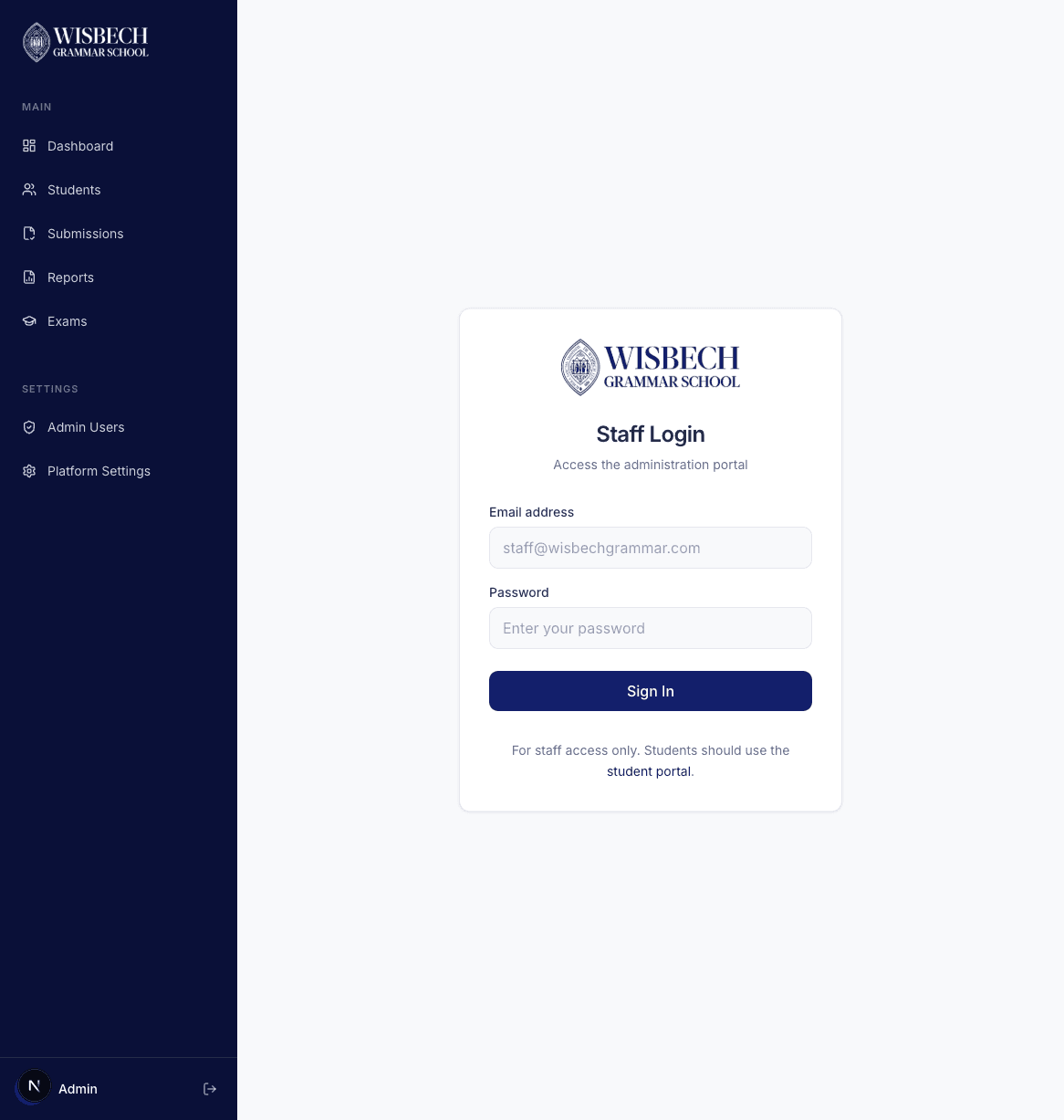
Enter your school email and password, then click Sign In. Teachers have subject-scoped access — you will only see submissions and reports for the subjects you are assigned to (e.g. English or Mathematics).
Your Dashboard
After logging in you'll see your teacher dashboard with two key stat cards:
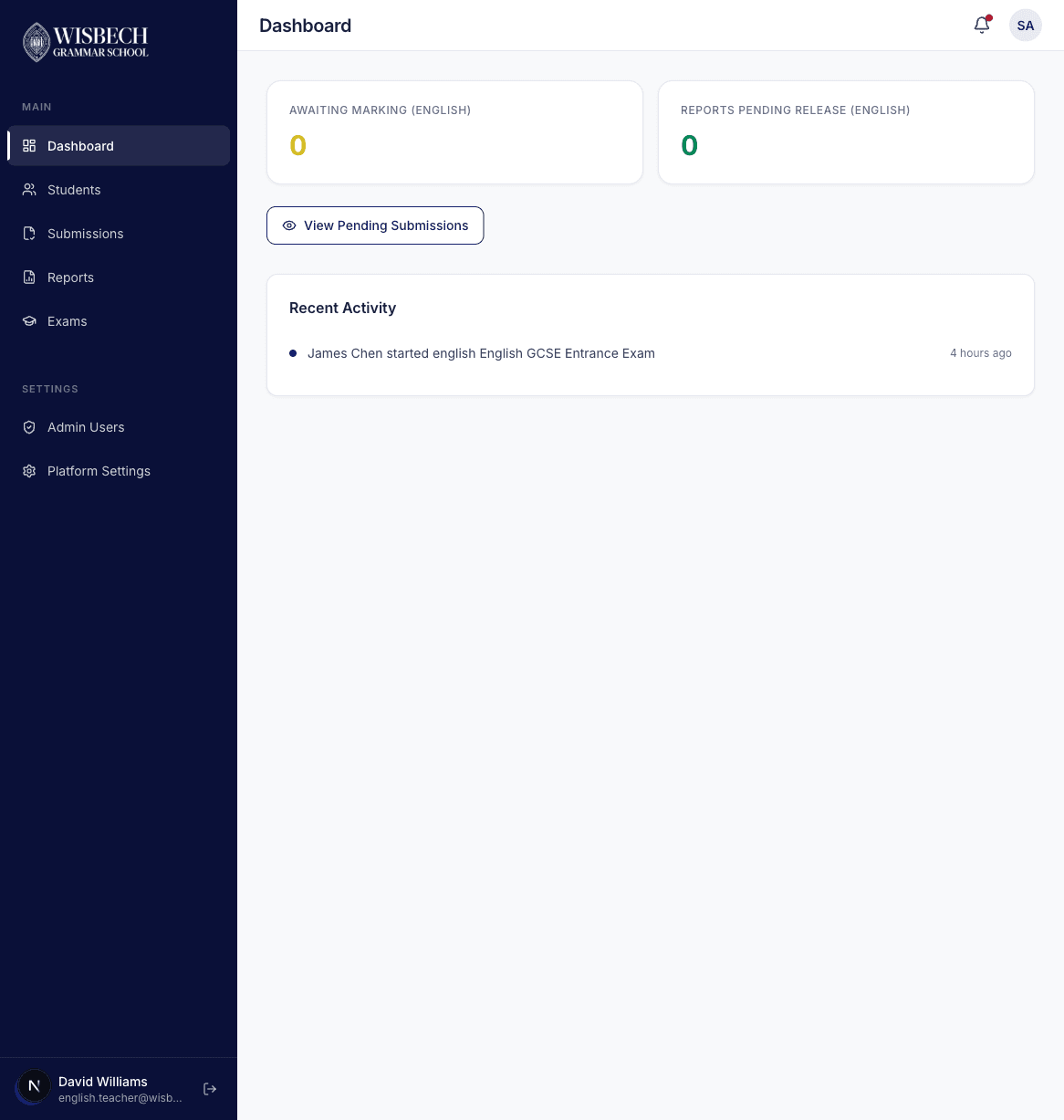
- Awaiting Marking — the number of submitted exams in your subject that need to be marked
- Reports Pending Release — reports that have been generated but not yet released to students
You'll also see a Recent Activity feed showing the latest events, and a quick action button to View Pending Submissions.
Viewing Submissions
Click Submissions in the sidebar to see all student submissions for your subject.
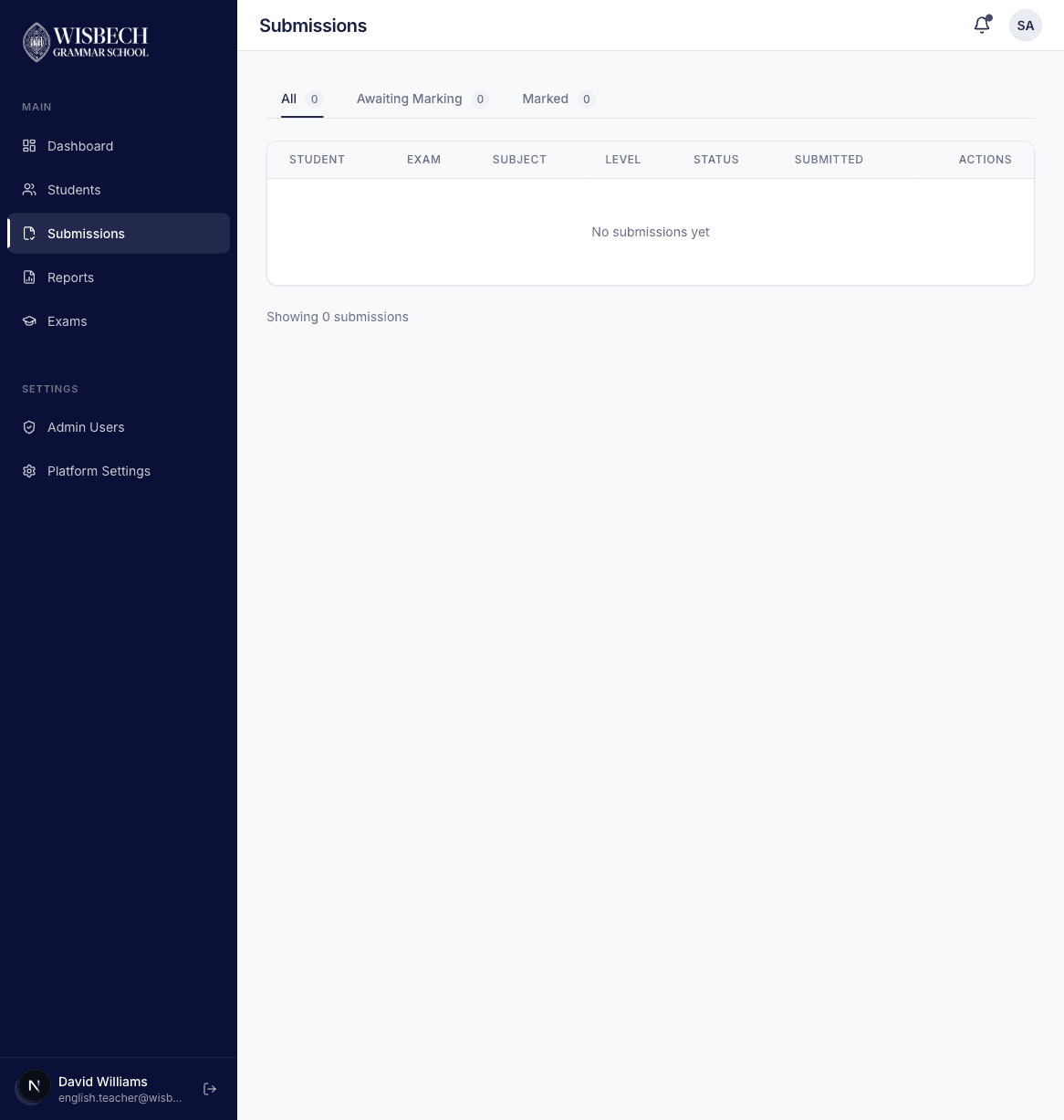
The submissions page includes:
- Filter tabs — switch between All, Awaiting Marking, and Marked submissions
- Status badges — each submission shows its current status (Submitted, Marking in Progress, Marked)
- Review button — click to open the marking interface for a submission
Marking an Exam
Click Reviewon any submission to open the marking interface. The page is laid out as a scrollable list of all questions with the student's answers.
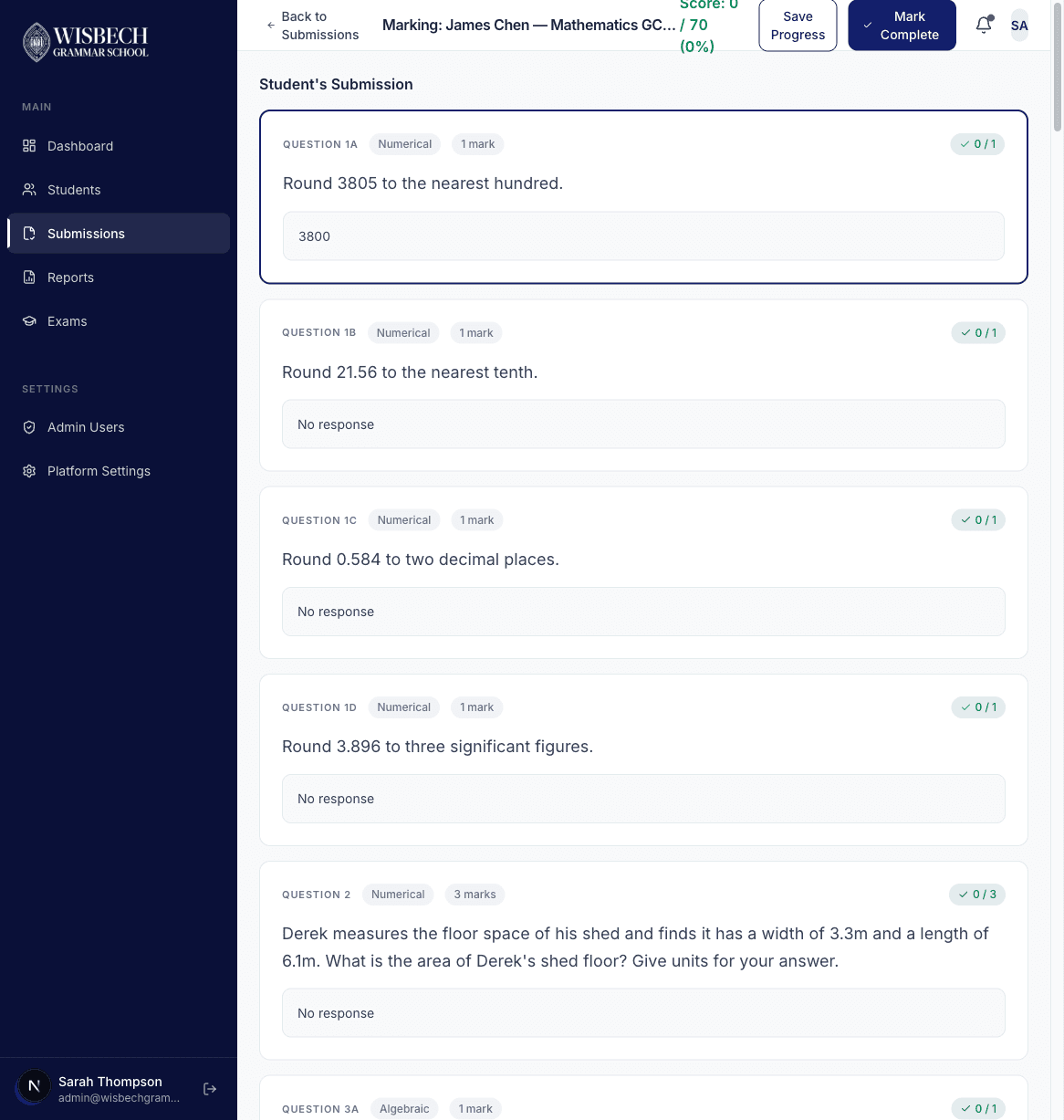
For each question you'll see:
- Question text — the full question with any diagrams or equations
- Student's answer — what the student submitted
- Question type badge — e.g. Numerical, Algebraic, Multiple Choice, Drawing
- Mark allocation — e.g. "3 marks"
- Score indicator — shows the current marks awarded (e.g. "0 / 3")
Auto-Graded Questions
Multiple choice questions are automatically graded. The system compares the student's selection against the correct answer and assigns marks accordingly. These show a green checkmark or red cross indicator. You can still override the auto-graded score if needed.
Manual Scoring
For numerical, algebraic, short answer, and extended writing questions, click on the question card to expand the marking panel. Here you can:
- Enter the marks awarded (up to the maximum for that question)
- Add written feedback for the student
Saving Progress
Click Save Progressin the header bar at any time to save your marking. You don't need to finish marking in one session — you can come back and continue later.
Completing Marking
Once you have reviewed and scored all questions, click the Mark Complete button in the header bar.
What happens next:
- The submission status changes to Marked
- A report is automatically generated with section scores and question-level details
- The report appears in the Reports section with a Draft status
Viewing Reports
Click Reports in the sidebar to view generated reports for your subject.
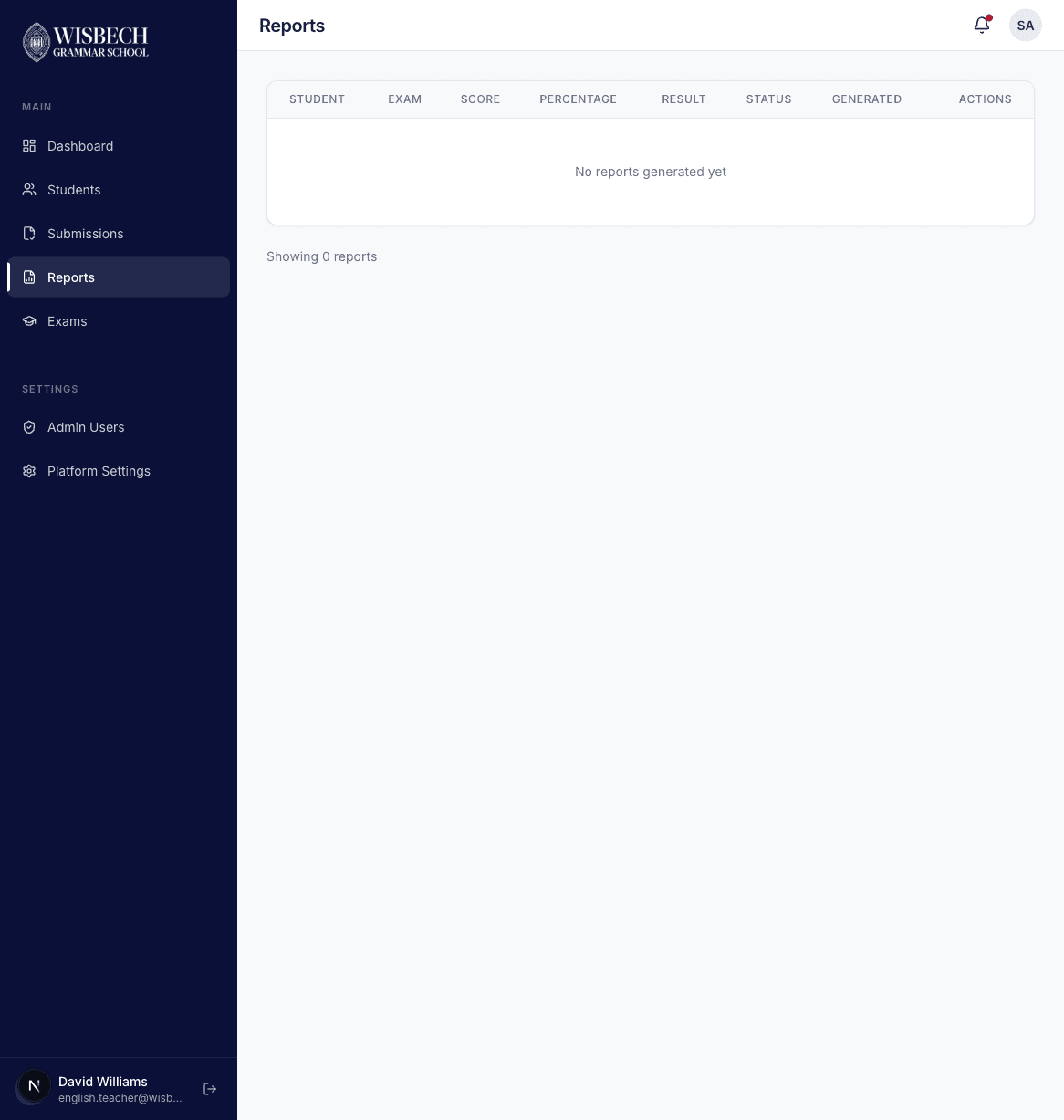
As a teacher, you can view the report details including scores, section breakdowns, and question-level results. However, finalising and releasing reports to students is an admin-only action.