Student Guide
A complete walkthrough of the exam platform — from logging in to viewing your results.
Logging In
Navigate to the student login page. You will need the email address and temporary password provided by the school admissions office.
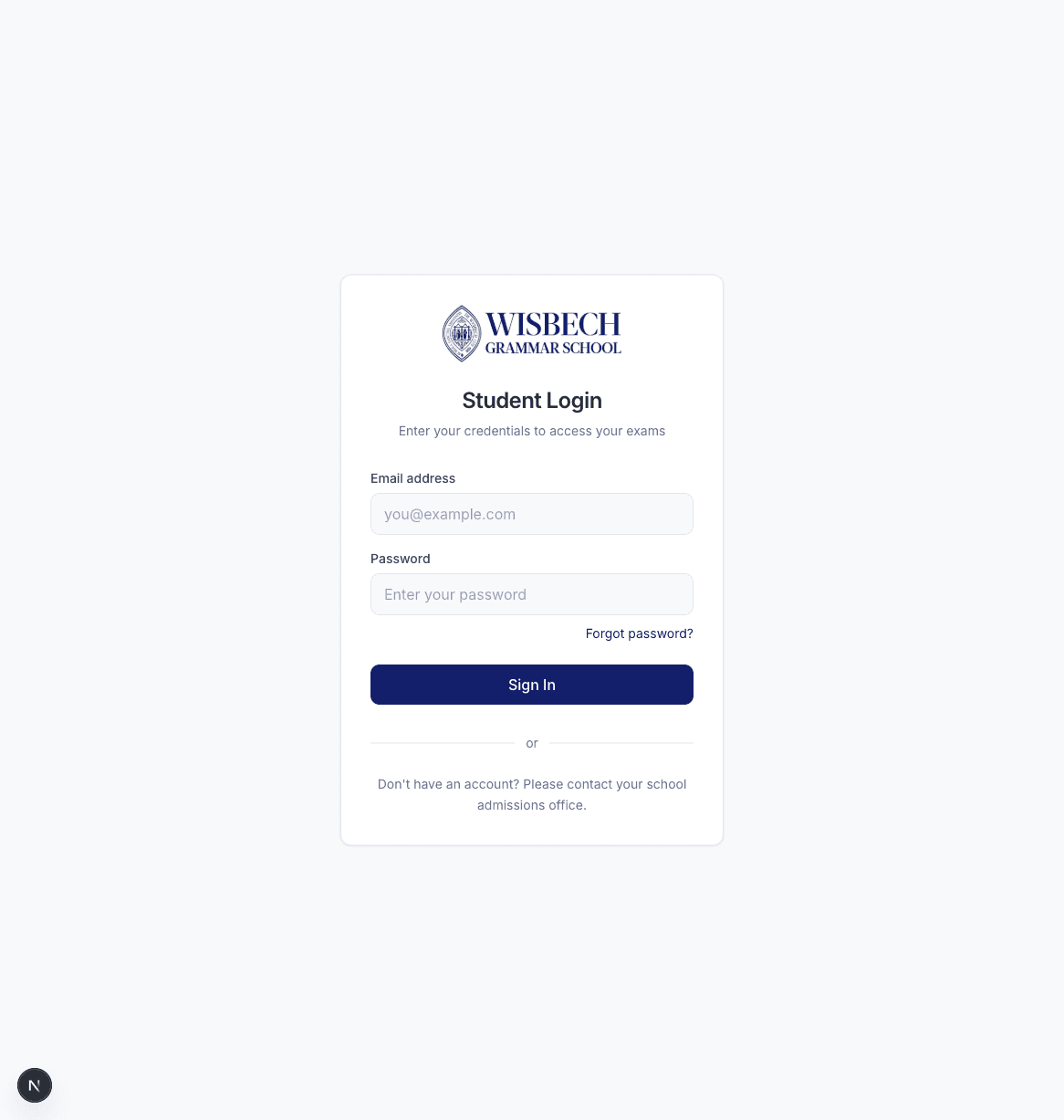
Enter your email and password, then click Sign In. If this is your first time logging in, you will be asked to change your password before accessing the platform.
Your Dashboard
After logging in, you'll see your dashboard. This is your home screen and shows everything you need at a glance.
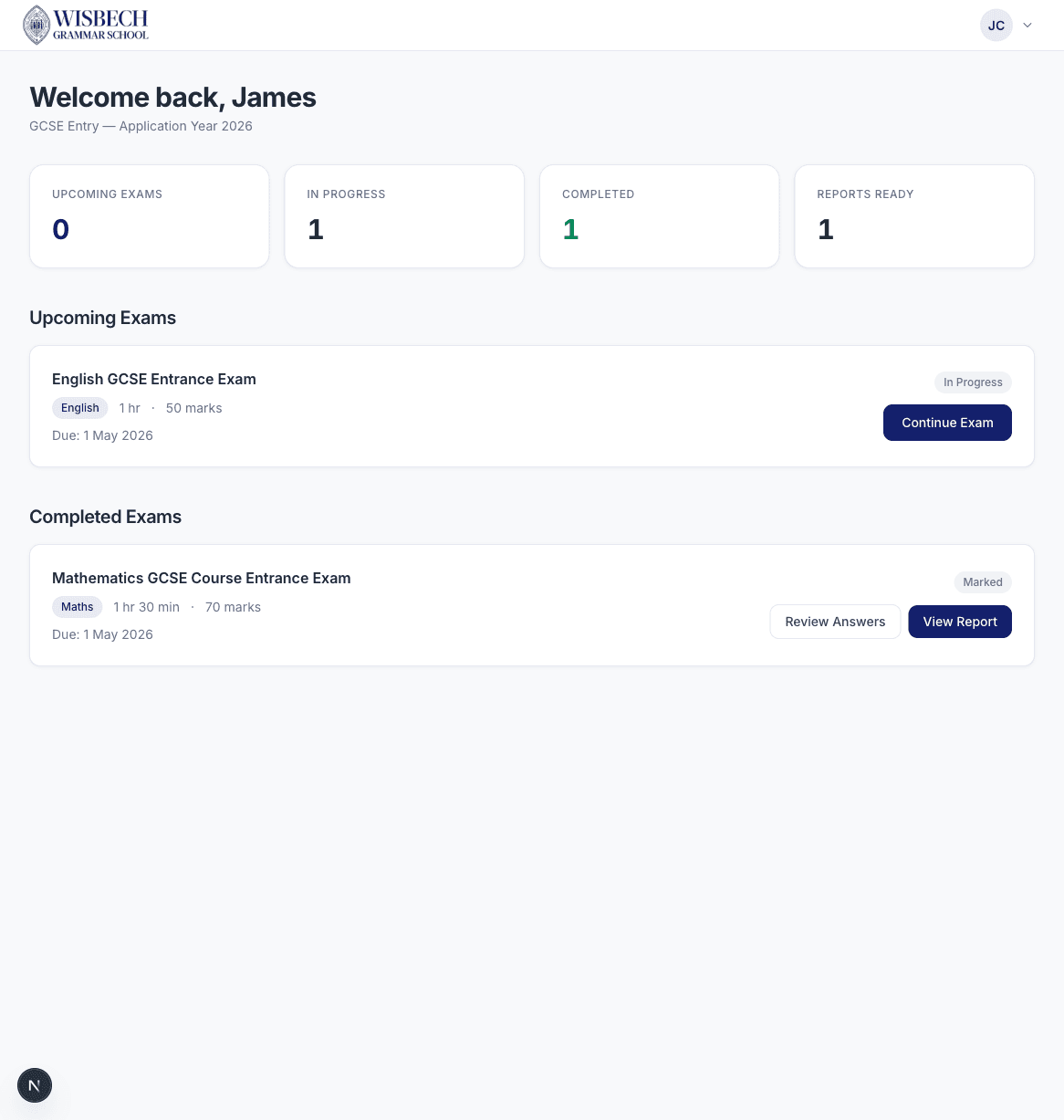
The dashboard includes:
- Stat cards — showing counts of upcoming, in-progress, completed exams, and reports ready
- Upcoming Exams — exams assigned to you with their subject, duration, marks, and deadline
- Completed Exams — finished exams with links to review your answers or view your report
Before the Exam
Click Continue Exam or Start Exam from your dashboard to open the exam detail page.
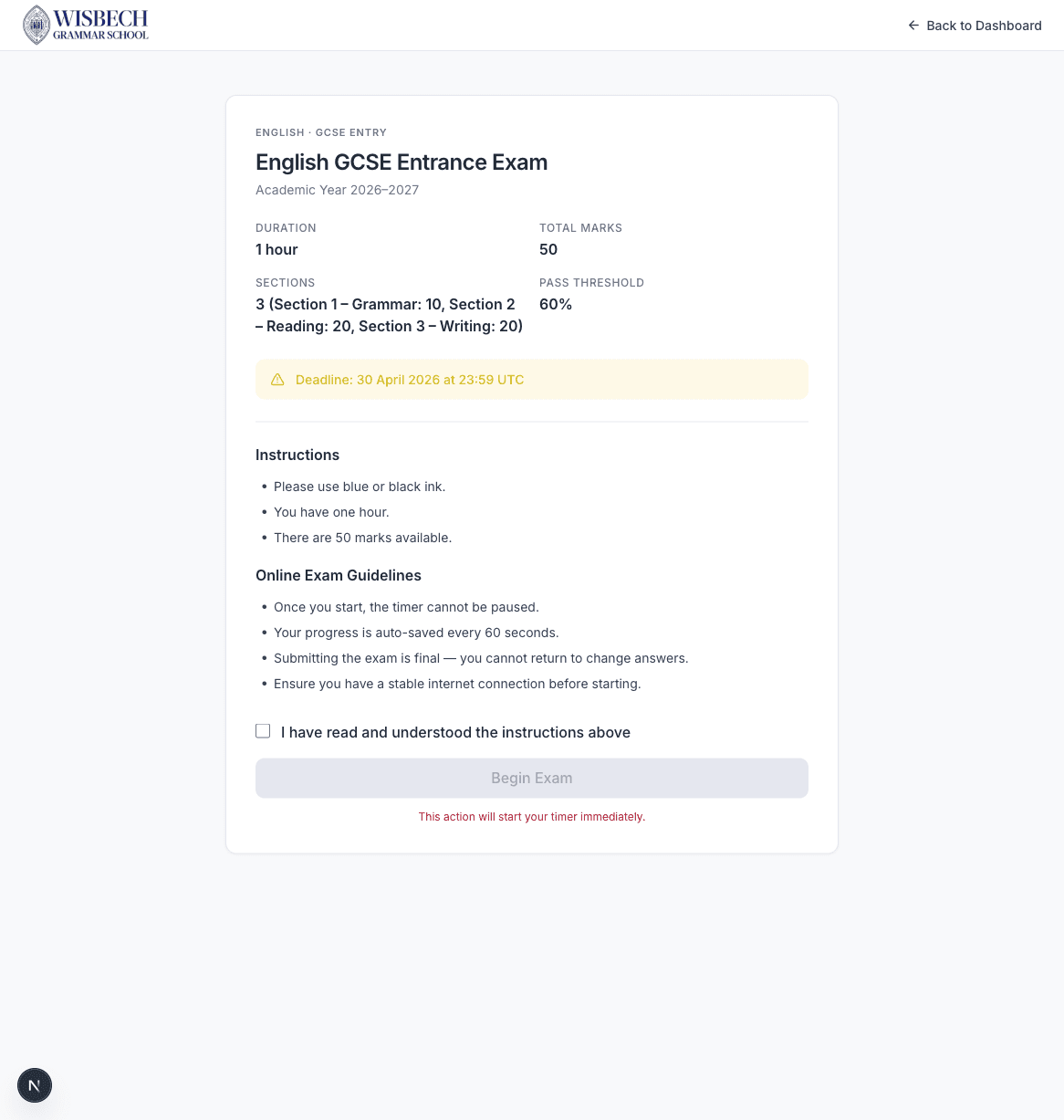
This page shows you:
- The exam name, subject, and academic year
- Duration, total marks, section breakdown, and pass threshold
- The deadline for completing the exam
- Instructions from the examiner
- Online exam guidelines (auto-save, timer, finality of submission)
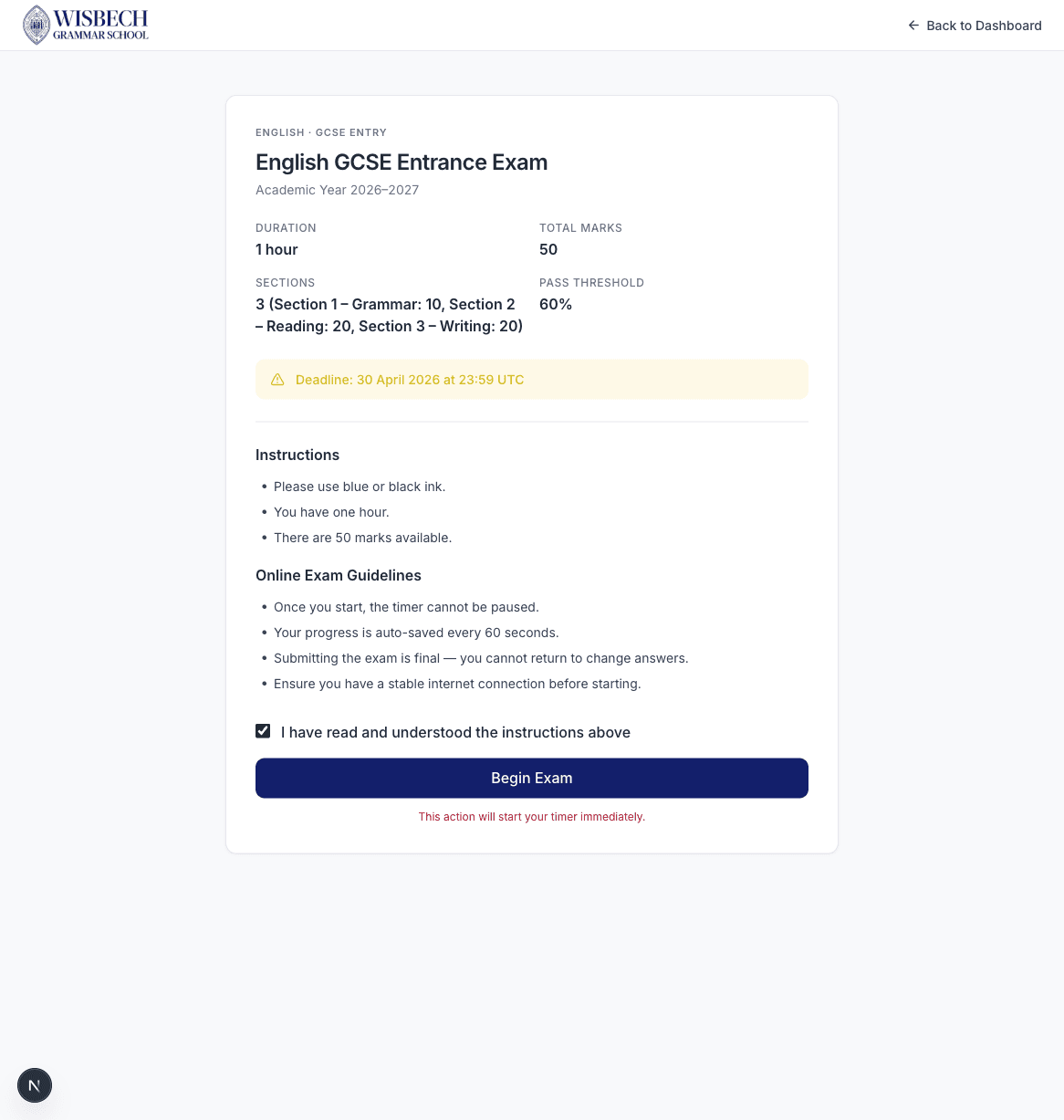
You must tick the checkbox "I have read and understood the instructions above" before the Begin Exam button becomes active.
Taking the Exam
The exam interface has three main areas: the header bar, the question navigator sidebar, and the main question content area.
The Exam Interface
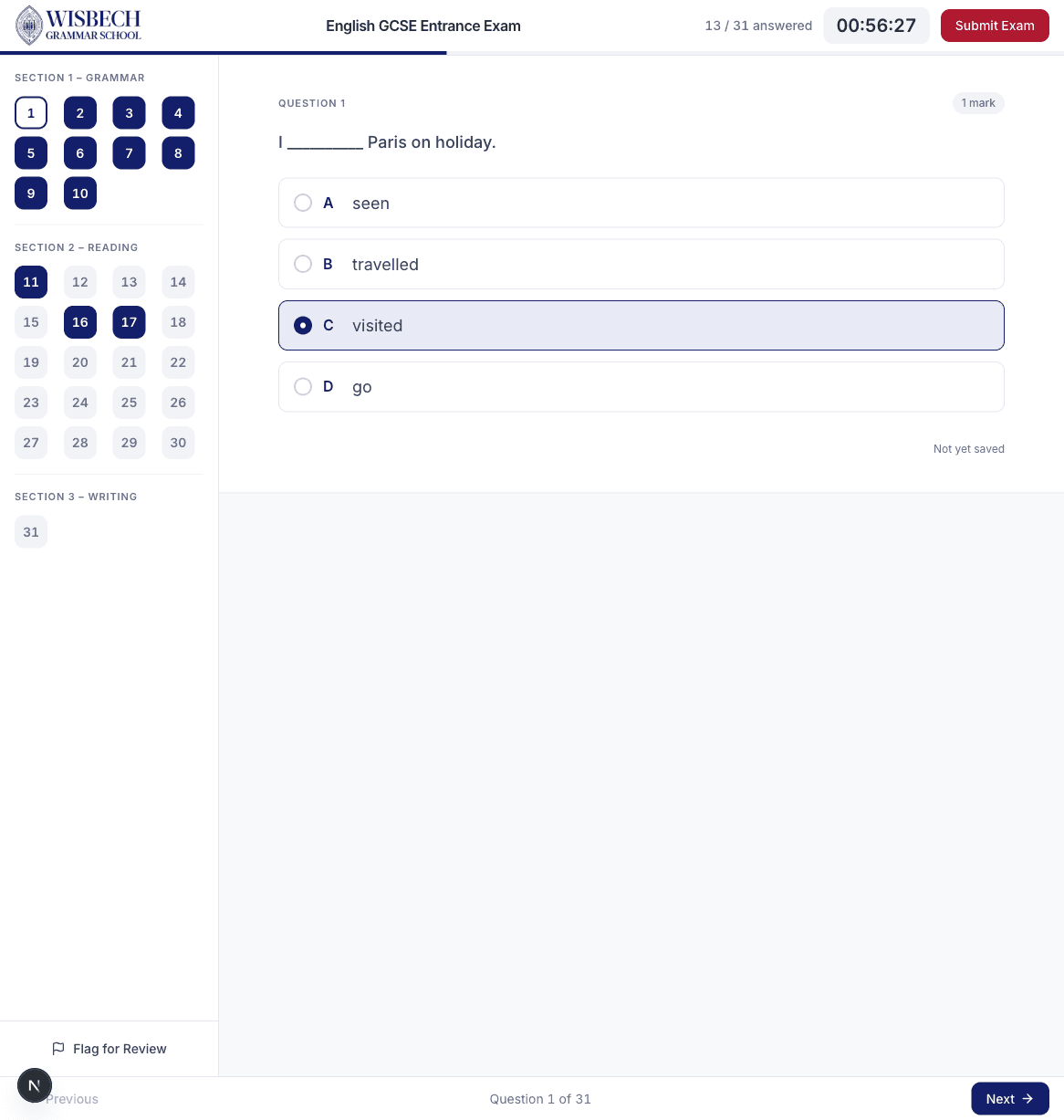
Key features of the exam interface:
- Header bar — shows the exam name, your progress (e.g. "13 / 31 answered"), the countdown timer, and the Submit Exam button
- Question navigator (left sidebar) — numbered buttons for each question, grouped by section. Answered questions are highlighted. Click any number to jump to that question.
- Main area — displays the current question with its mark allocation and your answer input
- Navigation buttons — Previous and Next buttons at the bottom to move between questions
Multiple Choice Questions
Select one option by clicking the radio button. Your selected answer is highlighted in navy blue.
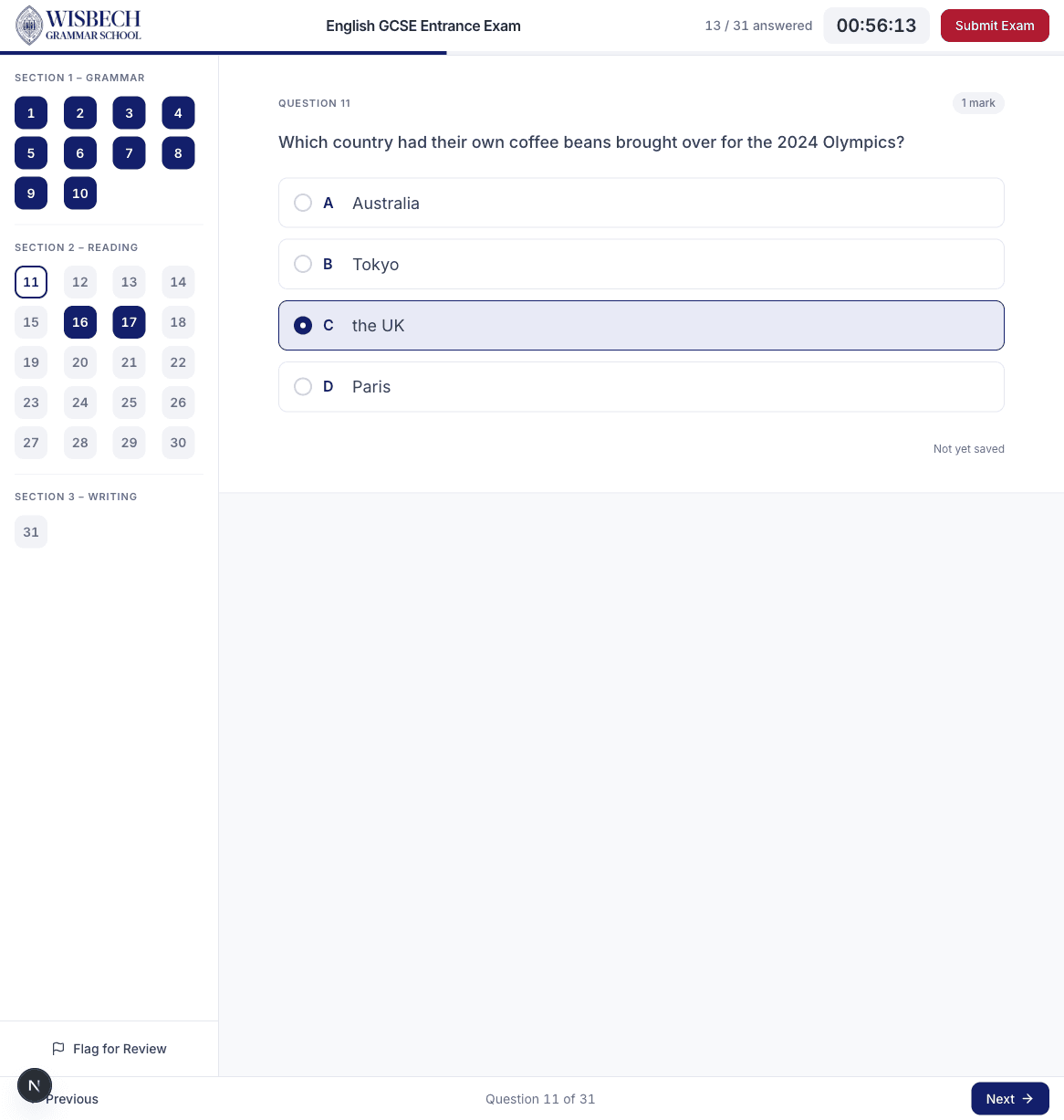
Reading Comprehension
Reading questions follow the same multiple-choice format but relate to a reading passage displayed in the question text.
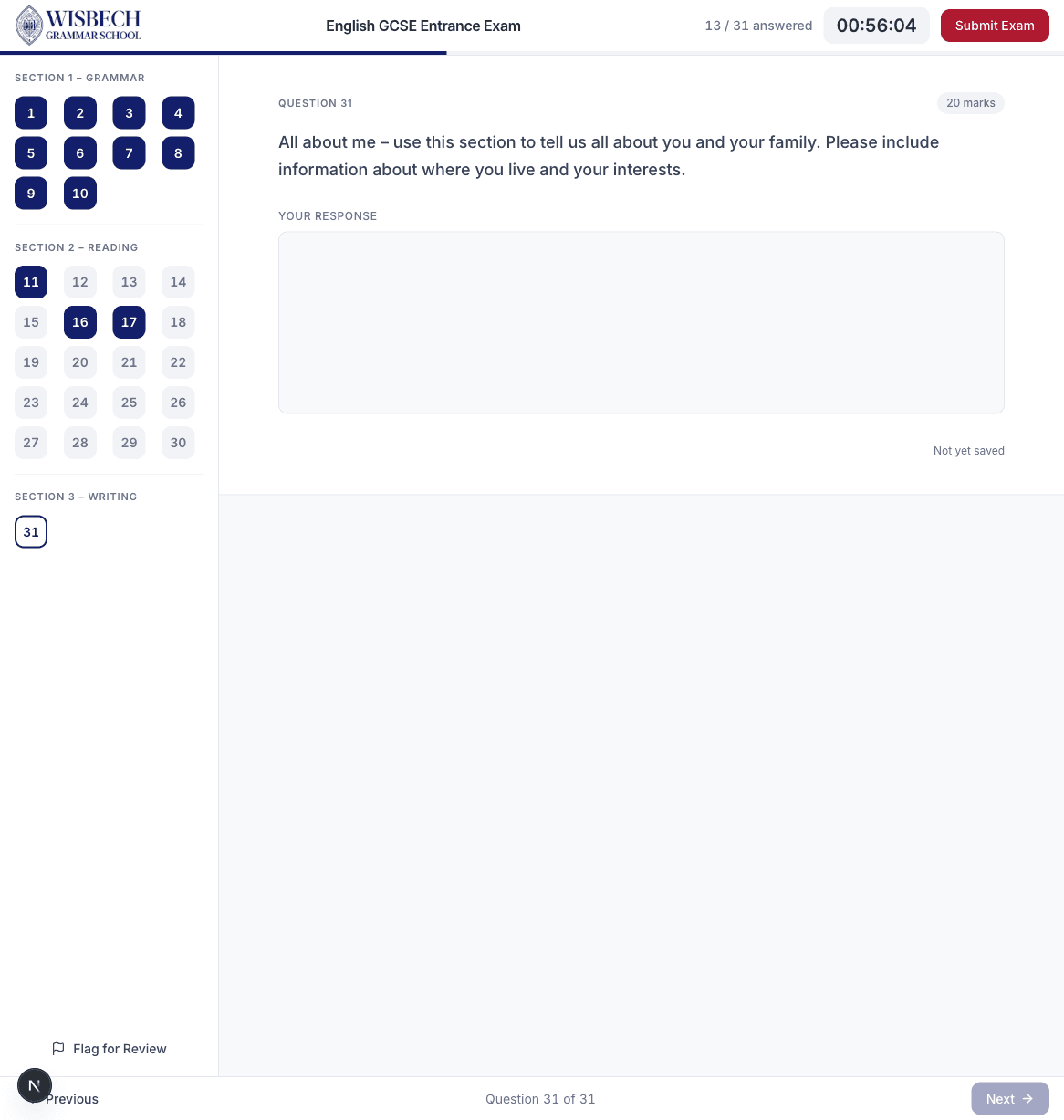
Extended Writing
For writing questions, you'll see a large text area labelled "Your Response" where you can type your extended answer.
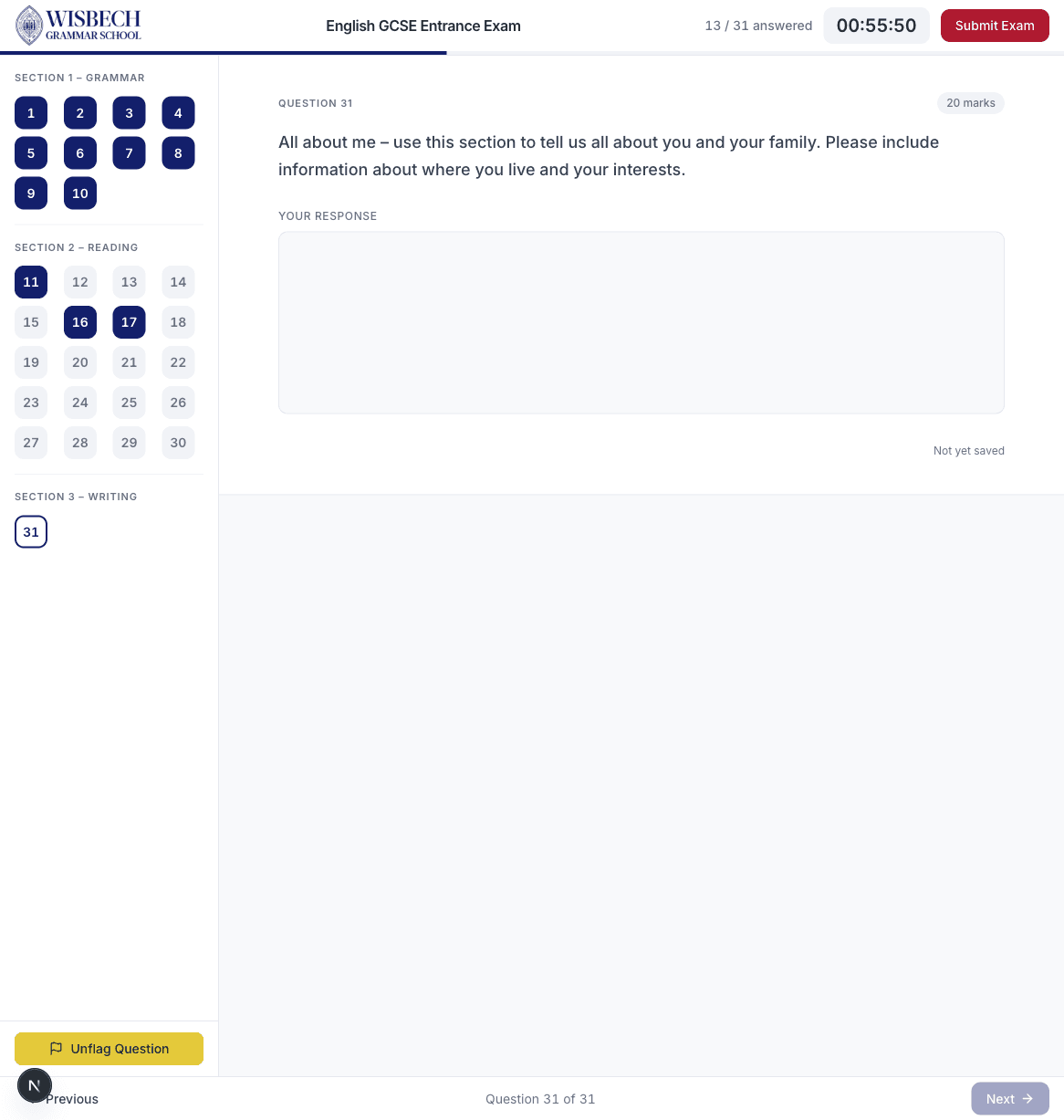
Flagging Questions for Review
If you want to come back to a question later, click the Flag for Review button in the sidebar. The flagged question will be marked with a yellow indicator so you can easily find it before submitting.
Auto-Save
Submitting
When you're ready to finish, click the Submit Exam button in the top-right corner of the header. A confirmation dialog will appear asking you to confirm your submission.
After submitting, you'll be redirected back to your dashboard. The exam will now appear under "Completed Exams".
Reviewing Answers
After submitting an exam, you can review your answers by clicking Review Answers from the Completed Exams section on your dashboard.
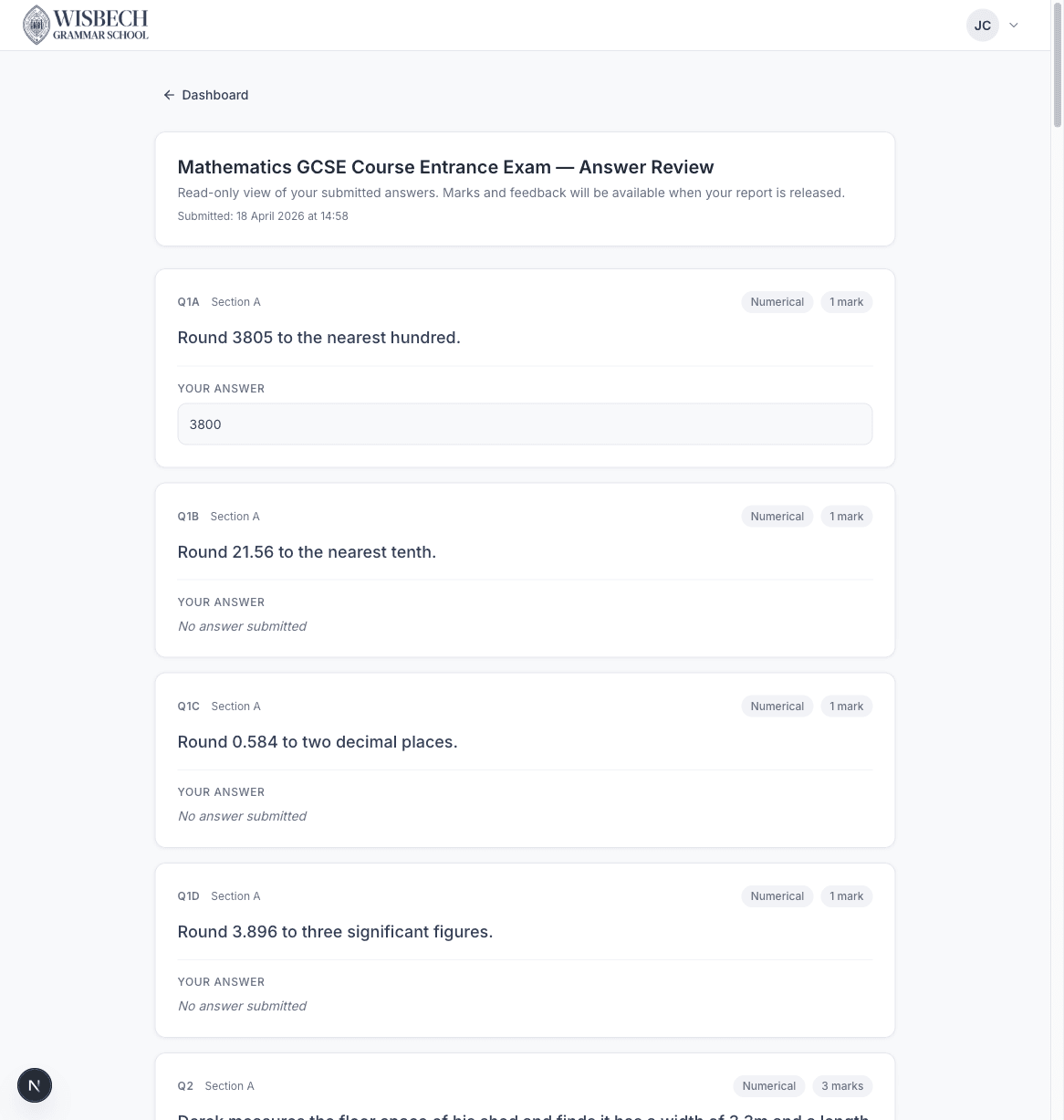
The review page shows each question along with the answer you submitted. This is a read-only view — you cannot change your answers after submission.
Viewing Reports
Once your exam has been marked and your report released, you'll see a View Report button next to the exam on your dashboard.
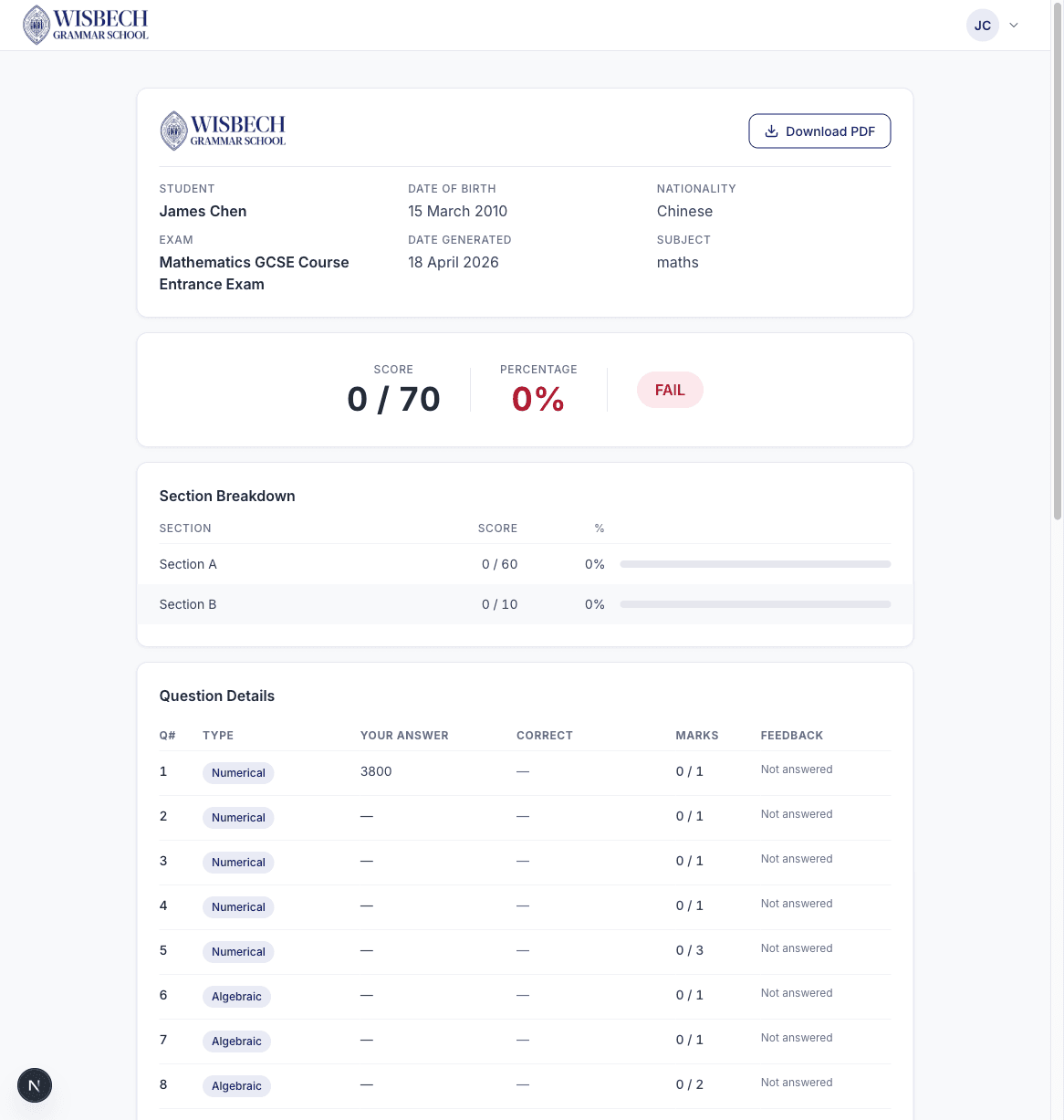
Your report includes:
- Overall score — your total marks out of the maximum, with percentage
- Pass/Fail indicator — whether you met the pass threshold
- Section breakdown — your score for each section of the exam
- Question details — a table showing each question, your answer, the correct answer, and marks awarded
- PDF download — click the "Download PDF" button to save a copy of your report